| |||
|

| Home > Astronomy > Computing > Transferring and Recording Observational Data |
Transferring and Recording Observational Data |
|
| |||
|
| Home > Astronomy > Computing > Transferring and Recording Observational Data |
Transferring and Recording Observational Data |
|
rsync -auv /obsdata/whta/yyyymmdd/ /scratch/whta/yyyymmdd
rsync -auv /obsdata/whta/yyyymmdd/ whtguest@whtdrpc1:/reduction/local/yyyymmdd rsync -auv /obsdata/inta/yyyymmdd/ intguest@intdrpc1:/reduction/local/yyyymmdd |
|
Issue again rsync every time you need to update your data at the destination directory with the most recent runs acquired. See also transferring data to FTP areas. The following are data areas at the disposal of the visitors:
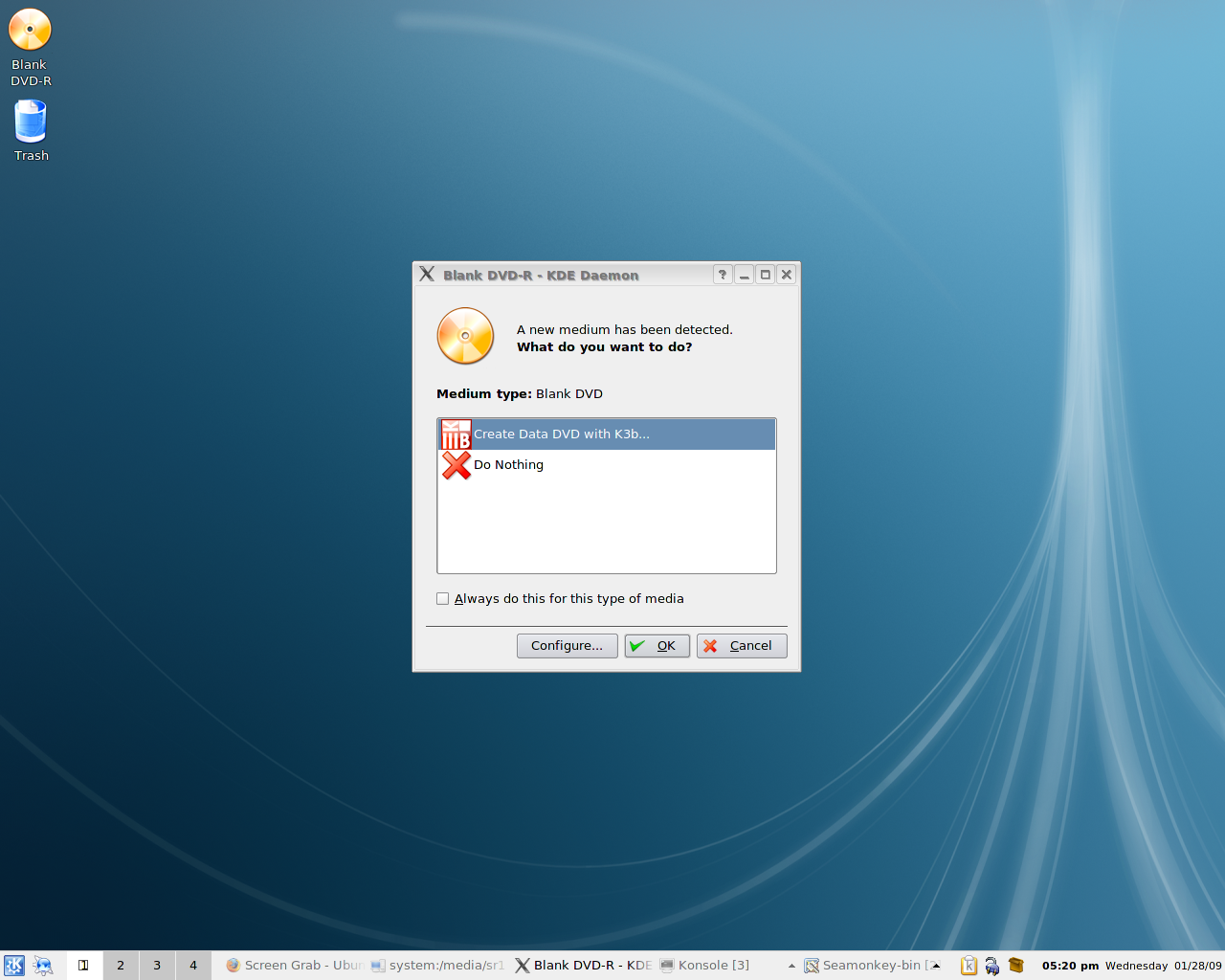
To external storage devicesAll our public computers provide USB 2.0 and FireWire IEEE 1394 ports to which you can plug your external hard disc or flash memory. Plug your device and this will be automatically mounted on a directory under /media. Once recorded, unmount the device (select 'eject' on the device icon), wait and unplug.To DVDsAll our public computers can record DVDs. Please ask your Support Astronomer or Telescope Operator for a blank DVD. At ING we supply DVD-R discs as default, which have a total capacity of 4.7GB. You can either record your data using K3b application or from the command line:Using K3b application: As a default, the systems asks you what to do when you insert a blank DVD in the DVD writer.
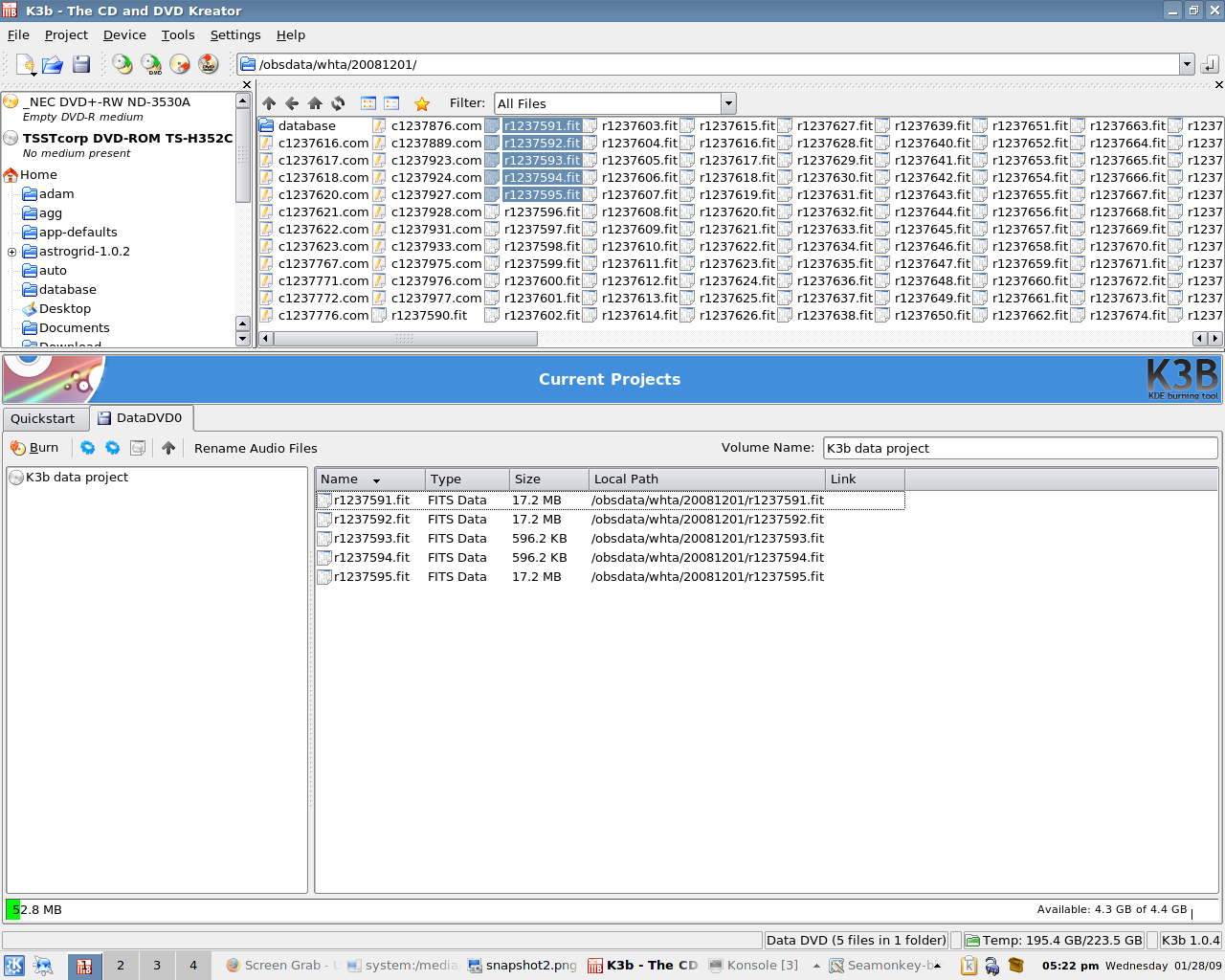
Select "Create Data DVD with K3b" and click on OK. This will start K3b. If it doesn't start, then type "k3b" at the prompt of your terminal window, for instance, for intguest on INTDRPC1: intguest@intdrpc1>k3b & Once K3b starts, then you can select what data to record. At the top, enter the directory path of your files, for instance, "/obsdata/whta/20081201/" and you will see below the files in there. Then select the files that you want to save (press CTRL+A to select all) and drag the files to the window to the right below. If you can see that window but instead you are shown different options, click on the option "New Data DVD Project" and you will see the selected files window:
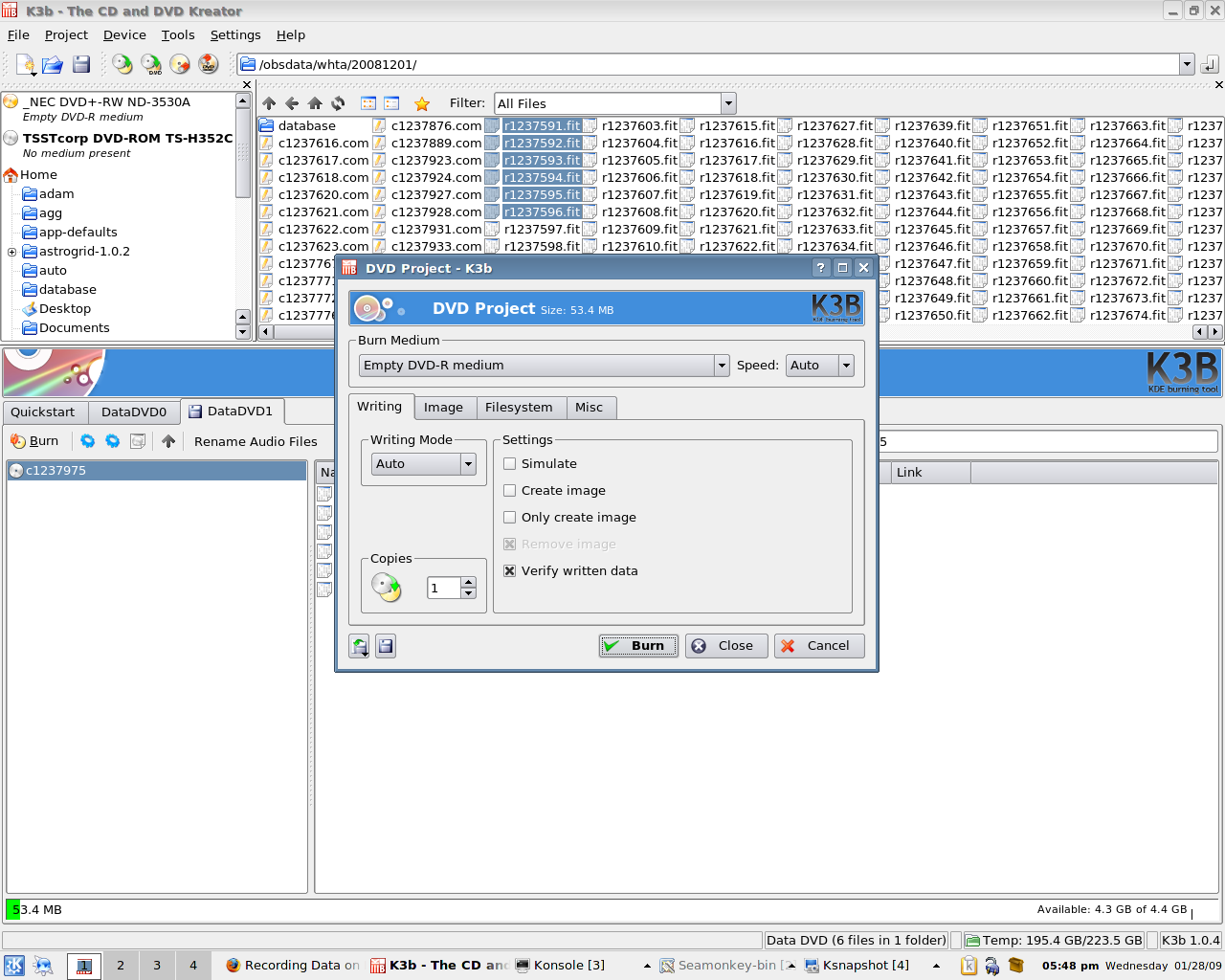
When done, press the "Burn" buttom to the left of the burning window. You will see a window with the different burning options.
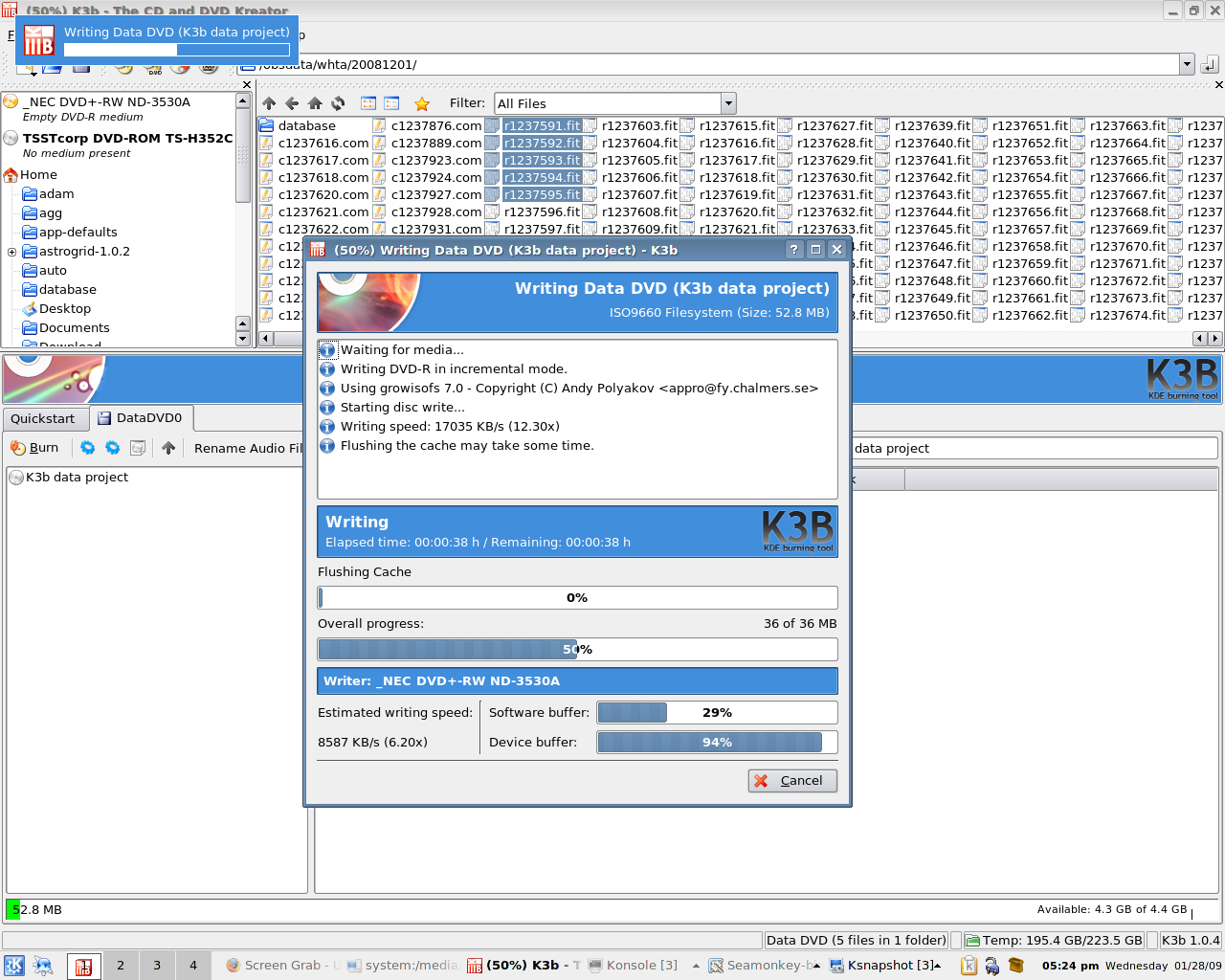
The default options are good enough, but if you wish you can modify them. Click on "Burn" to start recording:
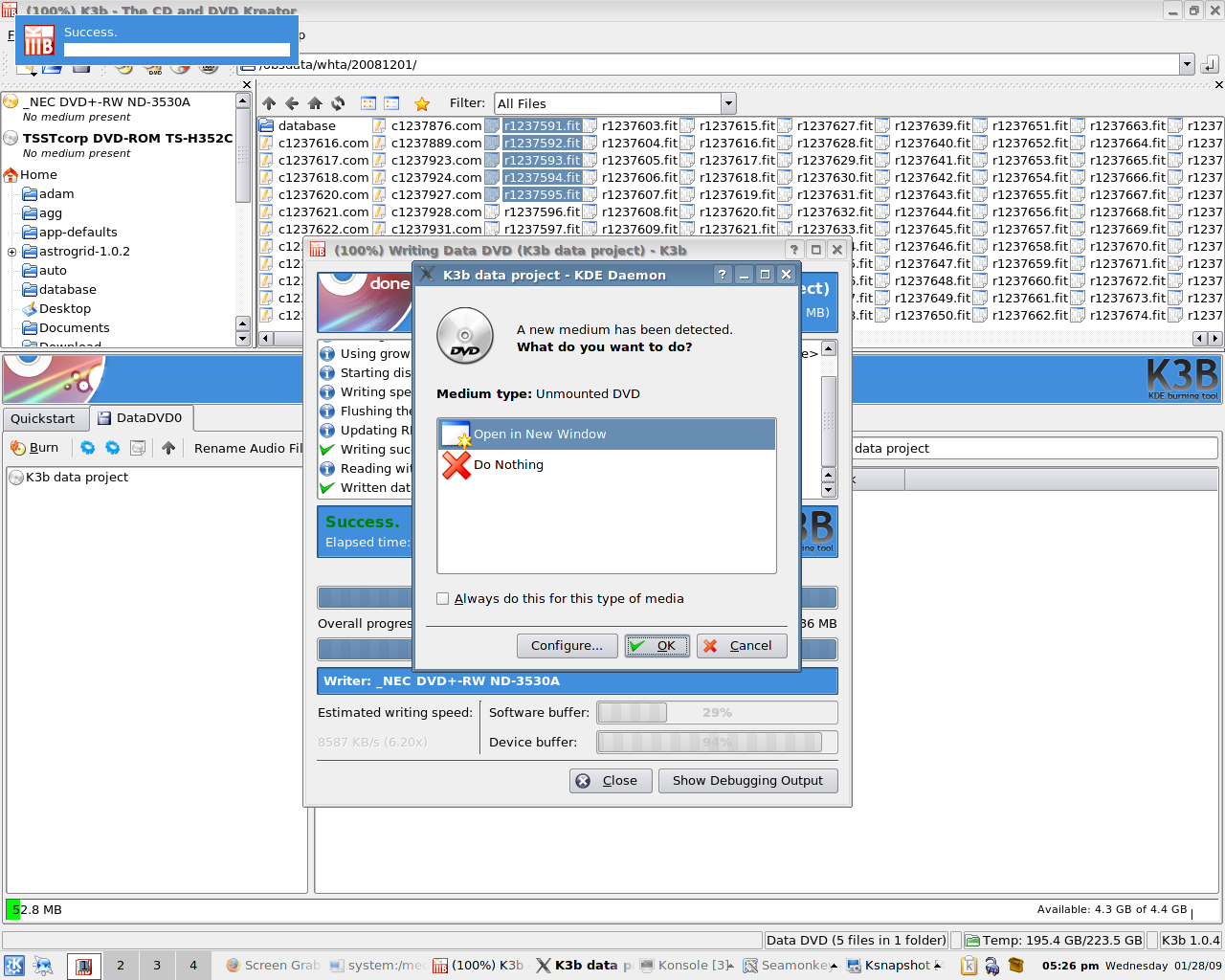
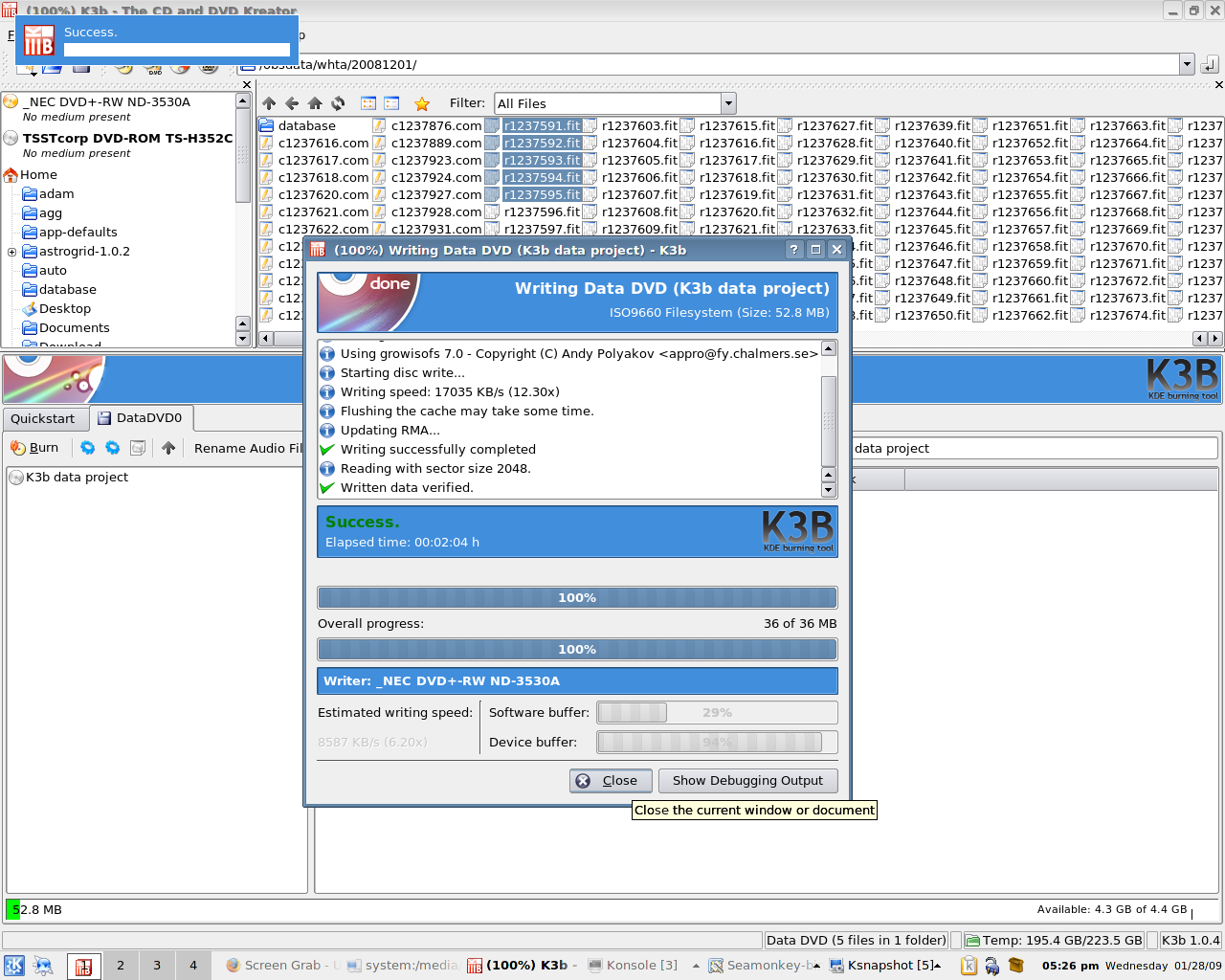
When finished, you could see a new window that opens because the system detects the already recorded disc. You can select between opening and checking that everything is there, or do nothing:
Close the burning window, exit K3b and save or discard the configuration of your recording:
From the command line: In the directory where the files are located, type: growisofs -Z /dev/dvdrw -R -J * Please note that, depending on which PC you are logged on, the name of the DVD recording device might be different from /dev/dvdrw (ie. /dev/dvdrw1). Please see the available DVD devices by listing the directory /dev/dvd*. The command growisofs offers more options, to see the manual, type: man growisofs To laptops on ingext networkData can be transferred directly to your laptop over the ingext network. This can be done file by file using the scp command on your laptop, for example, for transferring INT data: : | |||||||||||||||||||||||||||||||||||||||||||||||||||||||||||
|
scp -r intguest@intdrpc1:/obsdata/inta/yyyymmdd /your/directory scp intguest@intdrpc1:/obsdata/inta/yyyymmdd/"r*" /your/directory scp intguest@intdrpc1:/obsdata/inta/yyyymmdd/"r18051[8-9]*" /your/directory scp intguest@intdrpc1:/obsdata/inta/yyyymmdd/"r1805191.fit" /your/directory
|
|
whtguest@whtdrpc1> mkdir /obsdata/outgoing/whtguest/yyyymmdd
|
|
intguest@intdrpc1> mkdir /obsdata/outgoing/intguest/yyyymmdd
|
|
If you need to transfer the data to the ftp area frequently, you can use rsync:
|
|
whtguest@whtdrpc1> mkdir /obsdata/outgoing/whtguest/yyyymmdd whtguest@whtdrpc1> rsync -auv /obsdata/whta/yyyymmdd/ /obsdata/outgoing/whtguest/yyyymmdd intguest@intdrpc1> mkdir /obsdata/outgoing/intguest/yyyymmdd |
|
Or you can use the obsdata_ftp command issued from a guest or observer account to continously copy the data to an ftp directory accessible anonymously from outside the ING.
intguest>obsdata_ftp
From outside ING, data can be downloaded anonymously as follows. First, make sure that the copied files to the ftp area have the right permissions (they should be readable by any users): whtguest@whtdrpc1> chmod 644 /obsdata/outgoing/whtguest/yyyymmdd/* intguest@intdrpc1> chmod 644 /obsdata/outgoing/intguest/yyyymmdd/*
ftp ftp.ing.iac.es
ftp> cd whtguest/yyyymmdd
The prompt and passive commands should set both the interactive and the transfer modes to 'on'. Below are alternative methods for downloading the data:
wget -r -nH --cut-dirs=3 ftp://ftp.ing.iac.es/whtguest/yyyymmdd
Using a web browser:
ftp://ftp.ing.iac.es/whtguest/yyyymmdd/ If you wish to protect your files from downloading:
whtguest@whtdrpc1> chmod 600 /obsdata/outgoing/whtguest/yyyymmdd/* intguest@intdrpc1> chmod 600 /obsdata/outgoing/intguest/yyyymmdd/*
Use one of the methods above for downloading the data. When prompted for a username and password, enter whtguest or intguest and
the password provided by your Observing Support Astronomer. Below are more examples:
sftp whtguest@ftp.ing.iac.es:whtguest/yyyymmdd
sftp intguest@ftp.ing.iac.es:intguest/yyyymmdd
|
|
gftp ftp://whtguest:'password'@ftp.ing.iac.es/obsdata/outgoing/whtguest/yyyymmdd gftp ftp://intguest:'password'@ftp.ing.iac.es/obsdata/outgoing/intguest/yyyymmdd |
|
In order to upload the data from ING to elsewhere, first copy your data to a scratch directory and then ftp. For example: whtguest@whtdrpc1> mkdir /reduction/local/yyyymmdd
Then you can ftp the data to your destination using one of the methods above, or alternatively you can use filezilla (type 'filezilla' at the prompt). |
| Top | Back |
|